Sheet Music Maker
Pick a period, a composer style and an instrumentation, or describe the piece in a sentence, and the AI writes a new classical score you can play here and download as MusicXML, MIDI or PDF. To change notes yourself, open the MusicXML in your notation program.
Your generated score will appear here.
How to use the sheet music maker, from a sentence to a PDF
The real order on the page. You choose, the AI composes, you play and download.
1.Describe the piece, or pick three lists
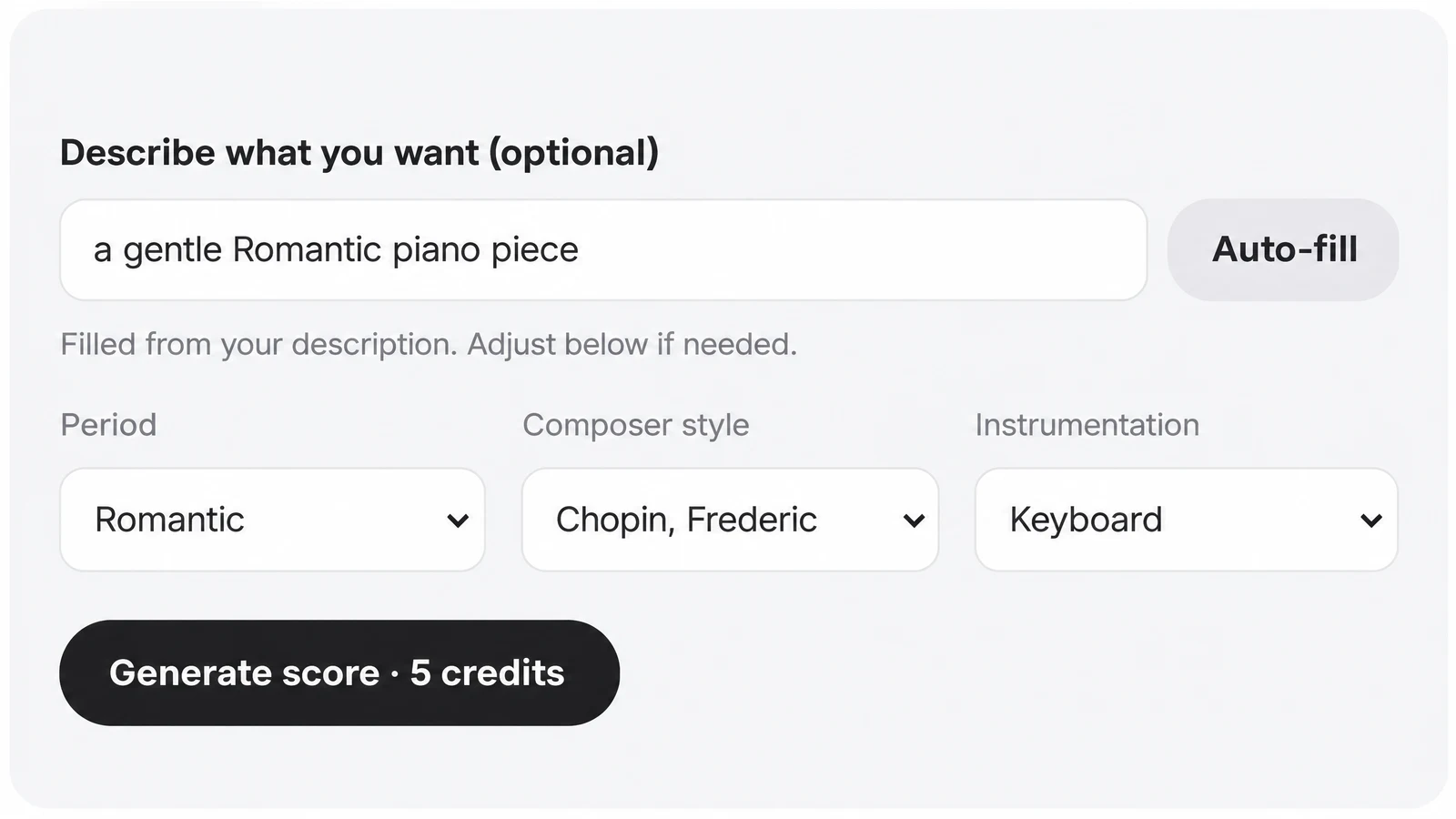
Type a sentence into Describe what you want (optional), such as a gentle Romantic piano piece, and press Auto-fill. It sets Period, Composer style and Instrumentation to the nearest match and uses no credits. Or skip the box and choose the lists yourself: Composer style opens after you pick a Period, and Instrumentation after you pick a composer, so you only ever see combinations the model knows. Auto-fill sets those three choices and nothing else; a key, tempo, length or mood in your sentence is not applied. You can change any list before you go on.
2.Press Generate score
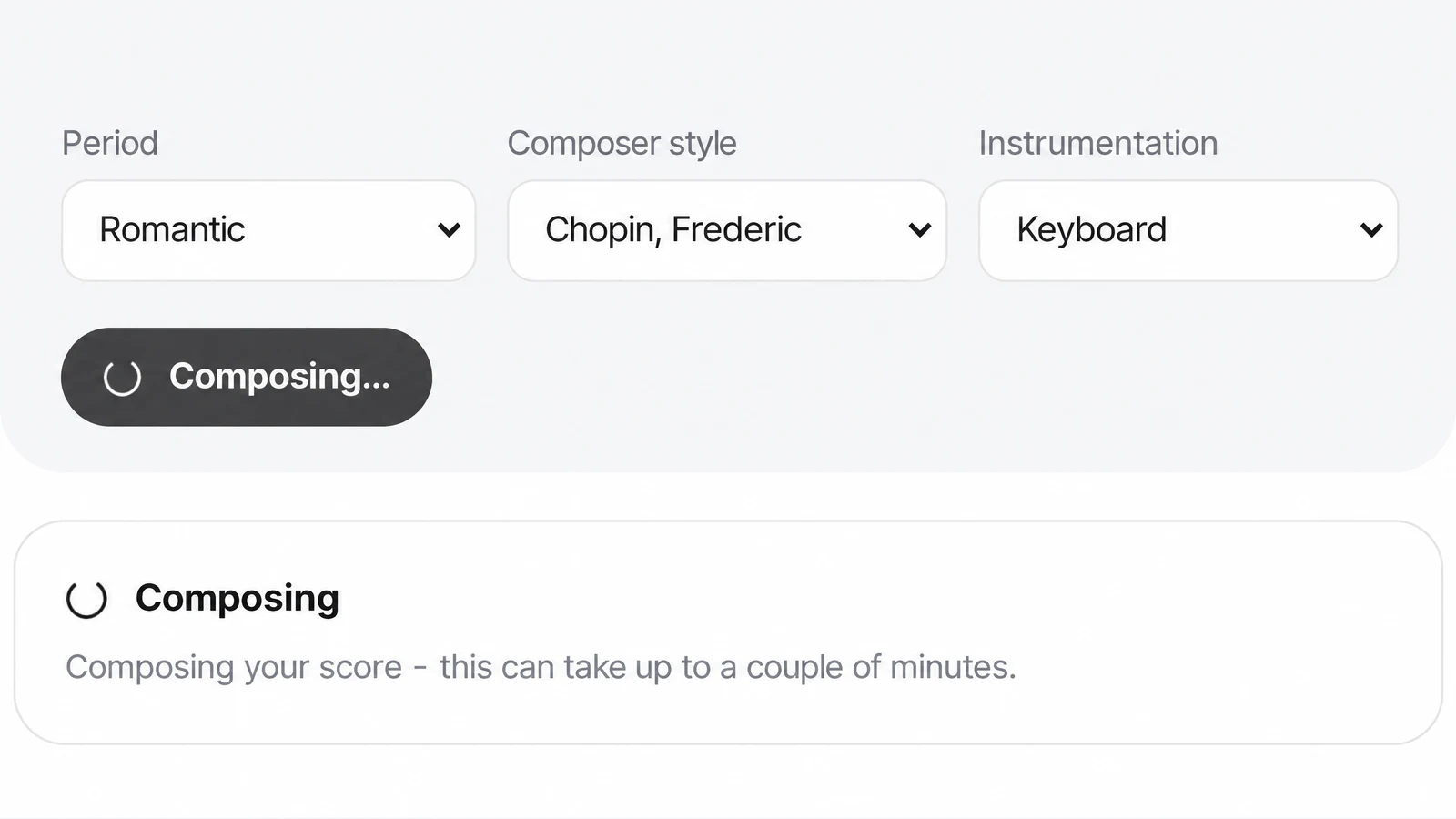
The button shows the price in credits before you press it. Signed out, it opens the sign in window first; with too few credits, it offers an upgrade instead of starting. While the AI writes, the button reads Composing and the card below says this can take up to a couple of minutes. You do not have to wait on the page: every score is saved to the Scores tab of your Studio library.
3.Play the score and download it
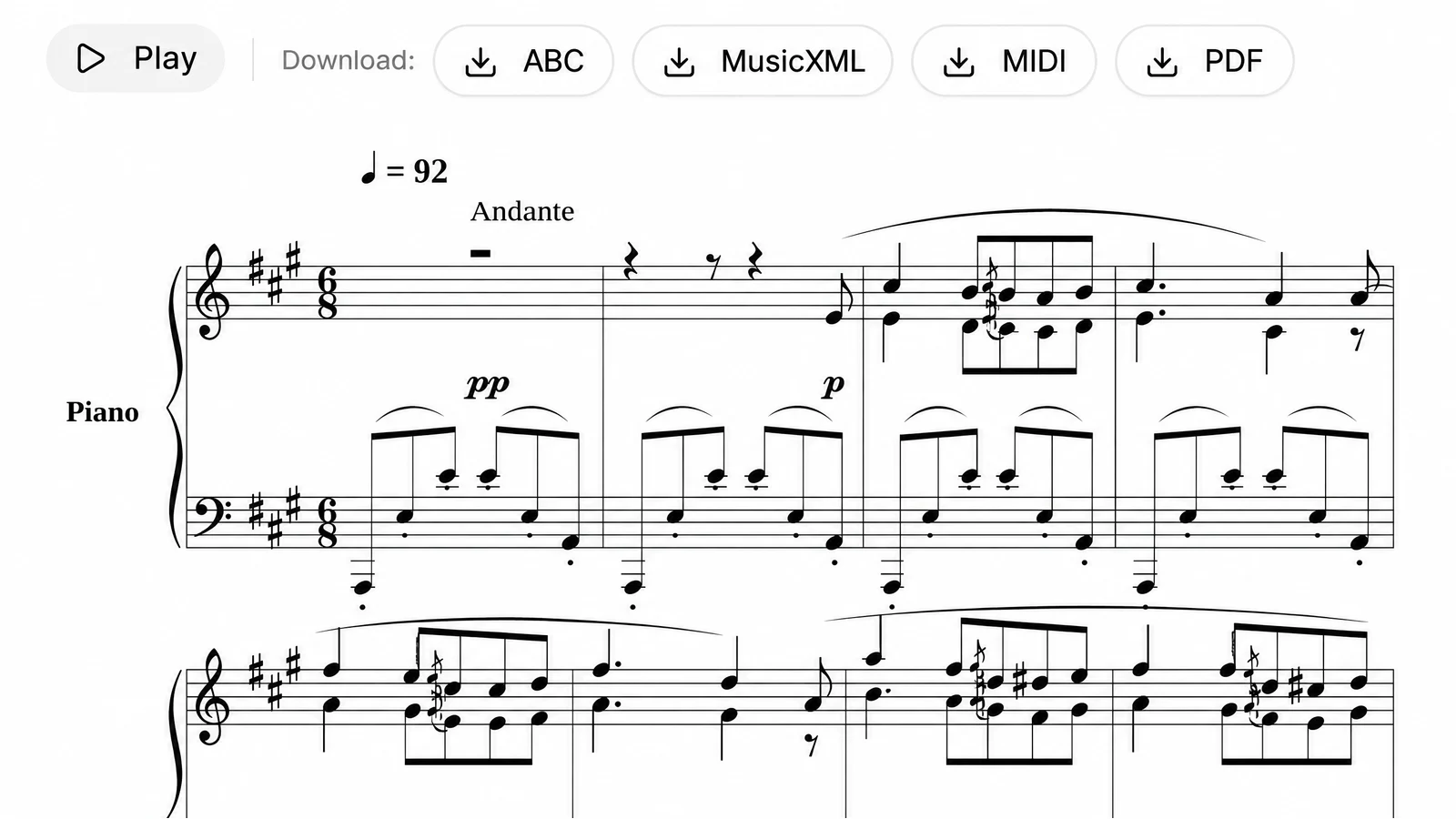
The finished piece appears in the result card, engraved on staves. Press Play to hear it in your browser, with each note lit up as it sounds: a sheet music maker and player in one card. Above the score is Download: ABC, MusicXML, MIDI, PDF. Want another piece? Press Generate score again: each run writes a different piece, even with the same three choices.
4.Take it into your notation program or DAW
Open the MusicXML in MuseScore, Sibelius, Finale or Dorico to change notes, add your own markings, print it or pull out the parts. Drop the MIDI file into a DAW to put real instrument sounds on it. If all you need is paper, print the PDF as it is.
A sheet music maker that composes, not a notation editor
Most tools sold as a sheet music creator hand you an empty staff. This one hands you a finished piece.
Here you do not place notes one by one. You tell the AI what kind of piece you want, and it writes the whole score: notes, staves and all. That suits anyone who wants new classical music to play, study or teach from without writing it out by hand.
If you came to write your own melody note by note, this music score maker is the wrong place to start. If you want to shape a generated piece, download the MusicXML and finish it in your notation program, where every note is yours to change.
Already have the music as a recording? Then you need music transcription rather than a composer: it writes out the part you hear, one instrument at a time. If notes for a DAW are all you are after, an audio to MIDI converter hands you the notes as a .mid file to drop into your DAW.
Music score maker options: periods, composer styles, instrumentations
3 periods, 62 composer styles and 6 instrumentations, in 112 combinations the model was trained on. A combination outside them cannot be picked.
| Period | Styles | Examples and instrumentations |
|---|---|---|
| Baroque | 5 | Bach, Handel, Vivaldi, Corelli, ScarlattiEvery instrumentation except Art Song |
| Classical | 7 | Mozart, Haydn, Beethoven, Saint-GeorgesAll six instrumentations |
| Romantic | 50 | Chopin, Schubert, Brahms, Clara Schumann, Tchaikovsky, DebussyEvery instrumentation except Vocal-Orchestral |
Instrumentations
- Keyboard
- The piano option, offered for many composer styles, from Bach and Mozart to Chopin and Rachmaninoff.
- Chamber
- Offered in all three periods, for example with Vivaldi, Haydn or Brahms.
- Orchestral
- Offered in all three periods, for example with Handel, Beethoven or Tchaikovsky.
- Choral
- Offered in all three periods, for example with Bach, Mozart or Mendelssohn.
- Vocal-Orchestral
- Baroque and Classical only, with Bach, Handel, Vivaldi, Haydn or Mozart.
- Art Song
- Classical and Romantic only, for example with Beethoven, Schubert or Faure.
As a piano sheet music maker, pick Keyboard. Each composer offers only the instrumentations the model learned for them.
What the ABC, MusicXML, MIDI and PDF files are for
Four downloads from one score, each for a different next step.
- MusicXML
- The file for editing. It opens in notation programs such as MuseScore, Sibelius, Finale and Dorico, where you can change notes, print and extract parts. It is offered when the model returned it; a very large MusicXML may be dropped, and then the ABC is kept and the MIDI and PDF are built from it.
- MIDI
- A standard MIDI file of the piece. Drop it into a DAW to play it with your own instruments, or open it in any program that reads MIDI.
- A print ready A4 page of the engraved score, the same notation you see in the result card.
- ABC
- The score as plain text in ABC notation, which you can read and change in any text editor.
Where this composer stops
What this online sheet music maker leaves out, so nothing surprises you after you press Generate.
- Classical styles only
- The three periods are Baroque, Classical and Romantic. There are no pop, rock, jazz, hip hop, folk, film or modern styles.
- In the style of, not by
- A composer style is the model’s imitation of how that composer wrote. You get a new piece, never a real work by Bach, Mozart or Chopin.
- No key, tempo, meter or length setting
- There is no choice of key, tempo, time signature or length, and writing them into the description does not apply them. The description only sets the three lists.
- No lyrics, chords or tabs
- The score is notes on staves. It carries no lyrics, chord symbols or guitar tab.
- Notation out, not sound
- Play uses a synth sound in your browser, not recorded instruments, and there is no MP3 or WAV. For sound you can keep, put the MIDI into a DAW.
- No note editor or blank staff paper
- You cannot place, drag or type notes on this page, and it does not print empty manuscript paper. Editing happens in your notation program, with the MusicXML.
- Sign in and credits
- Auto-fill and Generate score both need you to be signed in. Each score uses credits, which come back automatically if a generation fails.
Sheet music maker questions
Does it cost anything to make a score?
Yes, each score uses credits from your SongDuet account, and the Generate score button shows the price before you press it. If a generation fails, the credits are refunded automatically. Auto-fill does not use credits.
Can I edit the notes after the AI writes them?
Not on this page. Download the MusicXML and open it in a notation program such as MuseScore, Sibelius, Finale or Dorico, where every note can be changed. The MIDI file works for editing in a DAW.
Can I choose the key, tempo or length?
No. You choose a period, a composer style and an instrumentation, and the AI writes the rest. Putting a key or a length into the description does not change the result.
Can I print the sheet music?
Yes. Download the PDF, an A4 page of the engraved score ready to print. For your own page layout or separate parts, print from your notation program using the MusicXML.
Why did the same choices give me a different score?
Every run writes a new piece. Two runs with the same period, composer style and instrumentation give two different scores, so generate again if you want another option.
Is the music really by Chopin or Bach?
No. The composer style tells the model whose writing to imitate. The piece is new, and it is not a copy or an arrangement of a real work.
Can it write piano sheet music?
Yes. Pick Keyboard under Instrumentation. It is offered for many composer styles in all three periods, including Bach, Mozart, Beethoven, Chopin, Schumann and Debussy.
Will it transcribe my own recording?
Not on this page, which only writes new music. Turning audio, MIDI or a photo of a score into notation happens in separate notation tools in the Studio.