AI Mastering
Drop your mix below for AI mastering. In the Studio you pick One-Click Master for a steady streaming level, or Match a Reference to borrow the loudness, tone and width of a song you love. The master comes back as a WAV.
Picking a file is open to anyone. Mastering starts in the Studio after you sign in, and each master uses credits shown on the button first. A failed run gives them back.
AI mastering modes: One-Click Master or Match a Reference
The first thing the Studio asks. Choose by what your mix needs, not by which sounds more advanced.
- A quiet mix that needs to sit at a steady streaming levelOne-Click MasterNo reference and no settings. It raises the track to a steady streaming loudness and caps the peaks. The default mode.
- A finished song that should sound like a record you admireMatch a ReferenceAdd a second file, a mastered song in a similar style. Your track is matched to its loudness, EQ, peak level and stereo width.
Plainly put: AI mastering in One-Click mode helps quiet, unmastered mixes the most. If your song is already loud, choose Match a Reference when you want its tone and width to change as well.
Wondering how this stacks up against a desktop setup? Our comparison of editors, plugins and online mastering lays out what each kind of tool is good at.
How to use AI mastering online, step by step
The same order the Studio shows you. Expect a few clicks and usually less than a minute of waiting.
1.Drop your mix and sign in
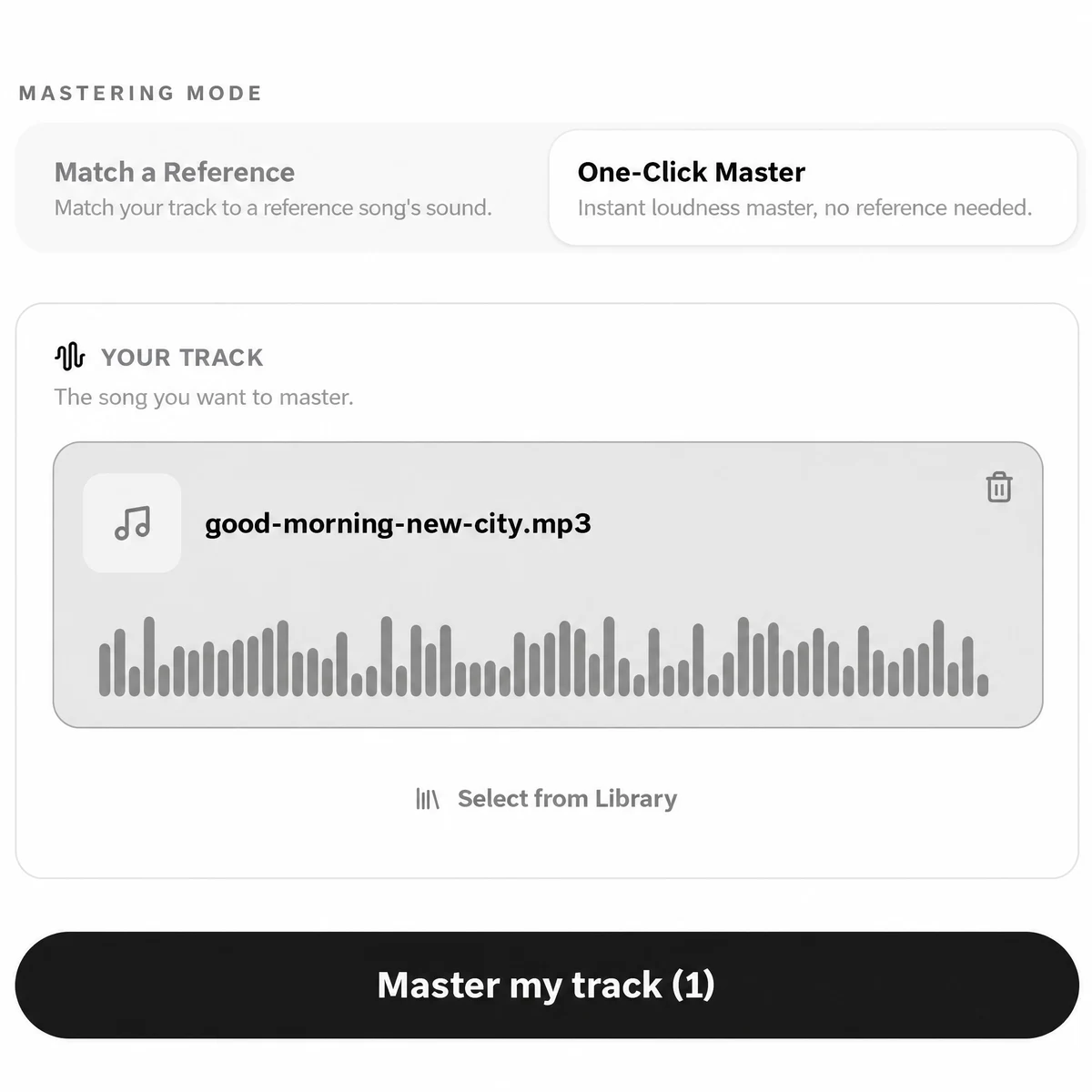
Drag the file onto the box at the top of this page. The Studio opens on the Mastering tab and asks you to sign in; your file is waiting in the Your track slot.
2.Choose the mode and press Master my track
One-Click Master is preselected. Switching to Match a Reference adds a second slot for the reference, filled by upload or Select from Library. Your credit cost is printed on the button itself.
3.Download the master
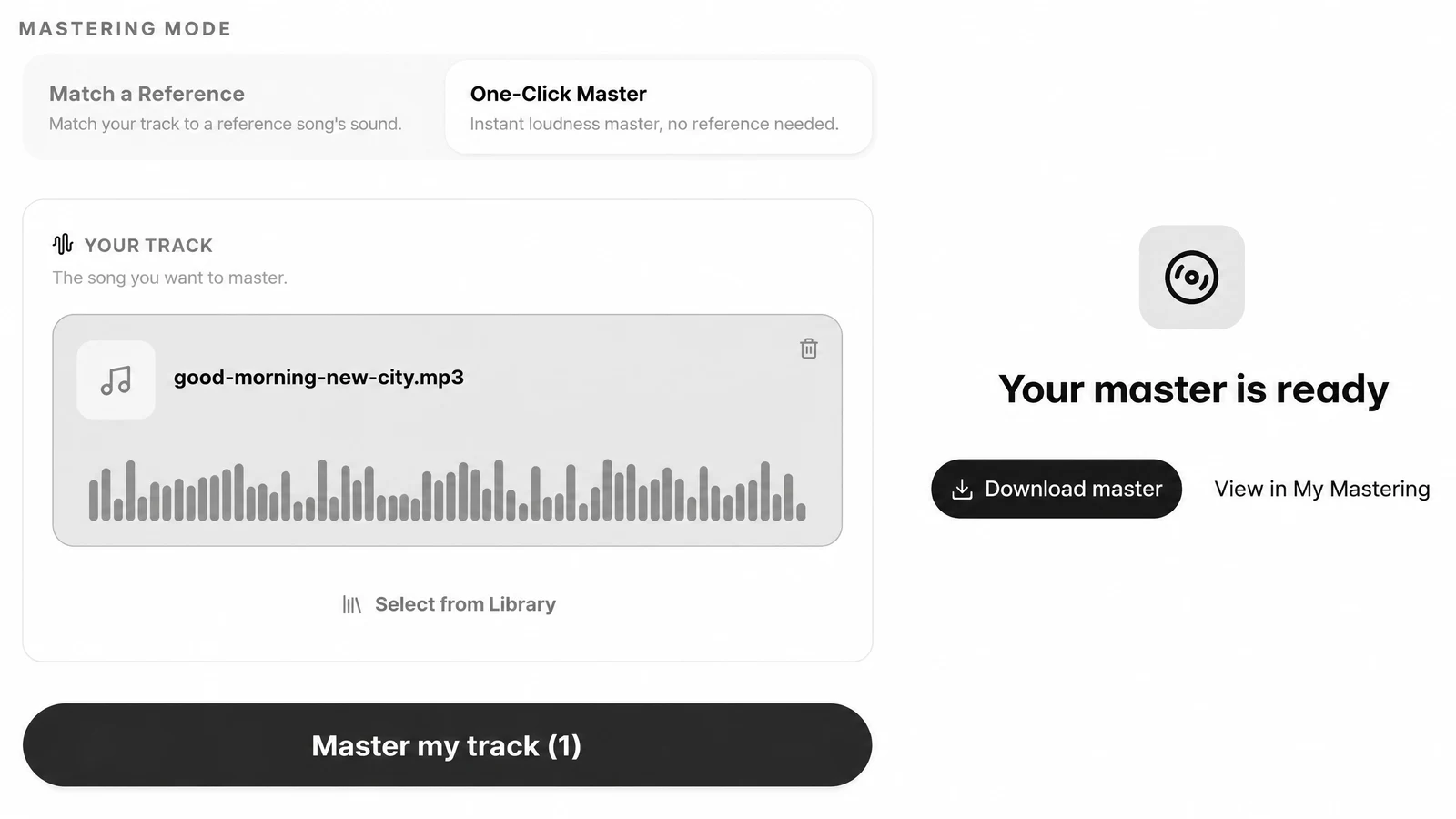
When Your master is ready appears, press Download master to save the WAV, or View in My Mastering to find it later. Put it in your release folder or back into your DAW for a final listen. Releasing it with visuals? Drop the WAV into the lyric video maker and it builds a video with timed lyrics around the song.
What One-Click did to a song that was already loud
We ran AI mastering in One-Click mode on a song made on SongDuet, a finished pop track of 3:27 uploaded as an MP3, in November 2026, and measured integrated loudness before and after.
The numbers barely moved, and that is the honest result. One-Click aims for a steady streaming level. A song that already sits there gets little change, so on a mix like this you will hear almost no difference. A quiet bedroom mix that has never been mastered is where it does the most.
- Before
- −14.5 LUFS integrated
- After One-Click
- −14.4 LUFS integrated
One song, one run. Approximate figures; your own mix will land differently.
Files in, master out
What you can bring, and what you take away.
| Your track | One finished stereo mix per run: MP3, WAV, FLAC, M4A or OGG up to 100MB, or a song from your SongDuet library |
|---|---|
| Reference | Match a Reference only: one mastered song, uploaded or picked from your library |
| Modes | One-Click Master and Match a Reference |
| You get | A WAV master named after your track |
| Where it is kept | My Mastering, to download again or delete |
| Waiting time | Usually under a minute, with no fixed promise |
| Cost | Credits per master, shown on the button; refunded if the run fails |
Mastering finishes a mix; it cannot fix one
Mixing sets the balance between instruments. Mastering polishes the finished stereo file.

Get the mix right first
If the vocal is buried, the low end is muddy or the mix clips, the master keeps those problems. Fix them in your mix, then master. Hiss and room noise in a recording also need cleaning before this step.
Mastering here works on one stereo file. It does not mix stems, separate instruments or remove noise; those are separate tools.
What this AI mastering does not do
Read this before you press Master my track.
- No mixing. It takes one finished stereo file. Separate tracks, stems or a multitrack session cannot be balanced or mastered here.
- No knobs. There is no EQ, compressor, limiter or width control, no loudness target to pick and no genre preset. The mode does the work.
- No loudness readout. The result card does not show LUFS or a before and after player. Use your own meter if you need the numbers.
- WAV only. The master downloads as a WAV file. There is no MP3 copy and nothing is sent to streaming services for you.
- No plugin or app. It runs in the SongDuet Studio in your browser and on our servers. There is no VST, desktop program or phone app.
- No human engineer. Every master is automatic. Nobody listens to your song or sends notes back.
- Files only. YouTube, TikTok and Spotify links are refused. Drop a saved file or choose a song from your library, one per run.
AI mastering questions
Is this online mastering free?
No. Mastering runs in the Studio after you sign in, and each master uses credits. The Master my track button shows the cost before you press it, and a run that fails gives the credits back.
Is it cheaper than booking a mastering engineer?
It is priced per master in credits, not per hour, and you see the price on the button. It is also a different thing: an automatic process with two modes, not a person making judgement calls on your song.
Will One-Click make my song louder?
If the mix is quiet, yes: it brings it up to a steady streaming loudness. If the song is already about as loud as streaming music, the master will sound much like the original.
What makes a good reference song?
A professionally mastered song in a style close to yours, with a similar mix of instruments. The result can only be as good as the reference you choose.
Do I pay again if I master the same track twice?
No. Running the same mode on the same track again, with the same reference in Match a Reference, returns the master you already have instead of charging again.
Can I master a song I made on SongDuet?
Yes. In the Your track slot, use Select from Library and pick the song. You do not need to download and upload it again.
Where do my masters go?
Every master is kept in My Mastering, where you can download it again or delete it. The WAV file is named after your track.
Can it fix noise, clipping or a muddy mix?
No. Mastering works on the finished mix you give it. Fix balance and clipping in your mix first; for hiss or room noise, clean the recording before you master.